
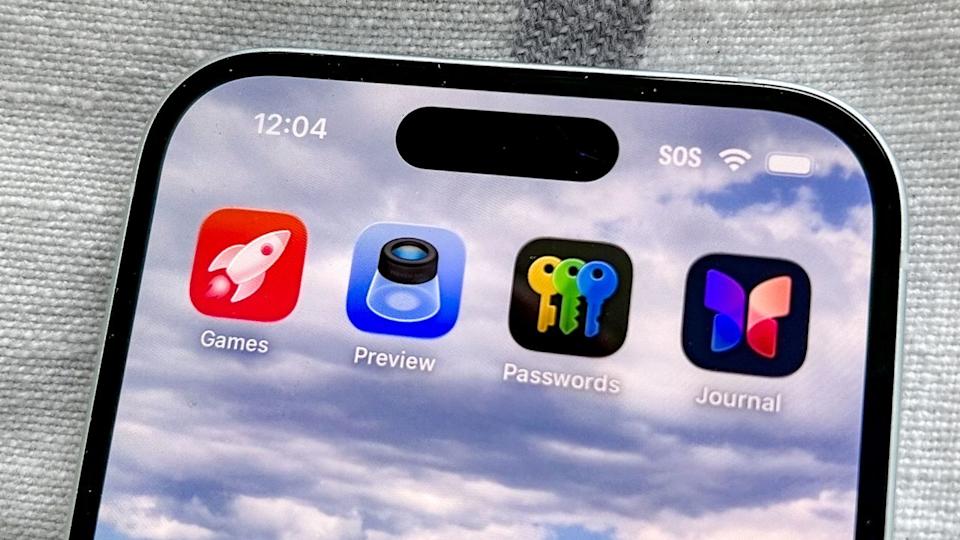
In the flurry of feature announcements that accompanies every major iOS update, it’s easy for smaller. Utility-focused additions to be overshadowed by flashier AI integrations or interface overhauls. Such is the case with the Preview app, one of two new native applications introduced in iOS 26. For many users, it might have been immediately dismissed or forgotten. However, for anyone who regularly deals with digital documents, contracts, or forms on the go. The arrival of Preview on the iPhone represents a quietly transformative upgrade. It solves a long-standing, specific frustration: the inability to natively and seamlessly sign a PDF document directly on your iPhone. Without relying on third-party apps or workarounds. Finally bringing a key professional capability from the Mac directly into your pocket.
Bridging the Platform Gap: From Desktop Staple to Mobile Necessity
Preview has been a cornerstone of the macOS experience for decades, serving as a fast, capable, and intuitive tool for viewing, annotating, and, most importantly, signing documents. Its absence on iOS created a persistent workflow gap. In a world where business and personal administration are increasingly mobile. Receiving a document via email that required a handwritten-style signature often meant one of two inconvenient paths: forwarding it to a computer for later handling or fumbling with a less integrated third-party app. The iOS 26 Preview app elegantly closes this loop. It’s not a stripped-down viewer, it’s a full-featured port that brings the Mac’s annotation toolkit highlighting. Text boxes, shapes, and the critical signature tool to the iPhone, enabling true mobile document completion.
The Killer Feature: Native Signatures, Anywhere
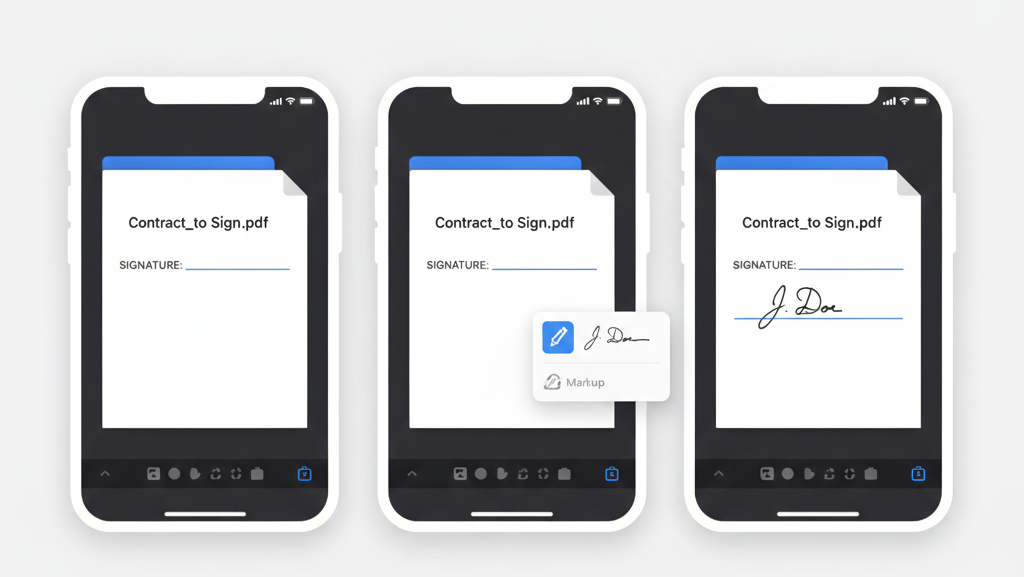
The centerpiece of this new utility is the integrated signature tool. For users already familiar with Preview on Mac, the experience is beautifully continuous: signatures created and stored on your Mac are instantly available on your iPhone via iCloud syncing. For new users, creating a signature is as simple as using your finger to sign directly on the iPhone’s screen a process that feels natural and is saved for future use.
The practical impact is significant. Whether you’re finalizing a rental agreement from a cafe, approving a work document while traveling, or signing a permission slip for your child received via email. The entire process from opening the attachment in Mail to saving and sending the signed PDF can now be completed in under a minute, entirely within Apple’s native ecosystem. This eliminates the “I’ll do it when I get to my computer” backlog that can lead to missed deadlines or forgotten tasks.
A Practical Guide: How to Sign and Fill PDFs on iPhone
While the interface is intuitive for Mac Preview users, the smaller screen necessitates some specific techniques for optimal use.
- Accessing the Toolbar: Open a PDF in the Preview app. The essential annotation toolbar lives at the bottom of the screen.
- Adding Text to Form Fields: Tap the text icon (a rectangle with a pencil), then the + button, and select “Add Text Form Box.” A text field will appear. Pro Tip: Zoom in on the document first for precise placement. Use the floating menu to adjust the often-too-small default font size (36pt is a good start) and drag the blue dots to resize the box.
- Adding Your Signature: Tap the same text icon and + button, but this time select “Add Signature.” Your Mac-synced signatures will appear, or you can tap “Add or Remove Signature” to create a new one with your finger.
- Placing and Finalizing: Drag your selected signature to the correct line on the document. You can add multiple signatures for different parties. Once complete, tap the share button to save or send the newly executed document directly from the app.
Context and Limitations: A Tool for the Job
It’s important to frame Preview’s role accurately. It is not, and does not aim to be, a full-featured PDF editor like Adobe Acrobat. It is a viewer, annotator, and signer and it excels in that specific niche. For complex PDFs with advanced form fields or heavy editing needs, more powerful tools will still be required. Furthermore, the experience is undoubtedly better on the larger canvas of an iPad. Where the interface has more room to breathe. However, its power lies in its convenience and integration on the iPhone, a device you always have with you. It solves the “in a pinch” scenario perfectly.
The Bigger Picture: iOS Maturing into a Pro Platform
The inclusion of Preview is part of a broader, gradual trend of iOS (and iPadOS) inheriting more professional-grade tools from macOS, blurring the lines between mobile and desktop productivity. While the simultaneously released Games app garnered more initial attention, it is Preview that delivers tangible, daily utility for a wide range of users. It addresses a real pain point not with a revolutionary new feature, but with thoughtful platform consistency. By bringing this specific Mac capability to the iPhone, Apple isn’t just adding an app. It’s removing a friction point in the mobile workflow, empowering users to handle important tasks immediately, no matter where they are. In the world of software updates, that’s often the most valuable change of all.
Explore Steaktek for more updates.

